
Primea ReviewsAll Reviews

Primea Reviews is reader-supported. When you buy through our Amazon links we may earn a commission, at no extra cost to you. Rankings are set by our editors and never sold. Learn more

Ranked & Reviewed by Primea Reviews

The 7 Best Printers for Chromebooks and School Laptops, Ranked & Reviewed

By the Primea Editorial TeamUpdated November 3, 202610 min read7 products ranked
The 7 Best Printers for Chromebooks and School Laptops, Ranked & Reviewed

The short answer

The Epson EcoTank ET-2800 is the printer to buy for a Chromebook household that prints often, with refillable ink that keeps running costs down. The Brother DCP-L2640DW is the pick for text-heavy homework, the Brother Work Smart 1360 has a screen that helps when the connection drops, and the Epson ET-4800 adds a wired fallback. The HP DeskJet 4355 is the cheap starter.

The Primea Scoreboard

Ranked & Reviewed

  1. A refillable-ink printer with standard wireless support, for households where the Chromebook prints every week.

    94Outstanding
    Check price
  2. A mono laser with duplex and a 250-sheet tray, for text-heavy assignments printed in bulk.

    92Outstanding
    Check price
  3. A small color display and automatic duplex make connection problems easier to solve.

    90Excellent
    Check price
  4. Ink tank economics plus Ethernet and a feeder, for a home office with a Chromebook.

    88Excellent
    Check price
  5. The listing advertises AirPrint, the nearest thing here to a confirmed driverless protocol.

    85Excellent
    Check price
  6. A budget wireless printer for Chromebook homes with light printing needs.

    83Very Good
    Check price
  7. A cheap printer with an automatic document feeder for multi-page scanning.

    80Very Good
    Check price

A Chromebook cannot install the driver disc that comes with an old printer. There is no disc drive, no downloadable Windows installer and no space for manufacturer software, so a printer either speaks a standard network printing language that Chrome OS understands or it does not print at all. That is the one buying rule that matters more than speed, ink cost or color, and it is the reason people end up returning perfectly good printers.

So this ranking begins with how each printer connects, then moves to running cost and daily convenience. We reviewed seven models from their listings, comparing wireless protocol support, scanning, duplex, ink system and what happens when the connection drops. None of the listings states Chrome OS certification, so we rank on standard wireless support and use, and we flag where a claim is open to doubt.

Before you buy

What Actually Matters

01

Driverless printing

Chrome OS finds printers over the network using standard protocols and does not install maker drivers. A printer that lists standard wireless protocol support or AirPrint is most likely to work. Check the listing for those words, and confirm on the setup screen that the Chromebook sees the printer.

02

Ink tank, cartridge or laser

Tank printers refill from bottles at a low cost per page, cartridge inkjets cost less up front but more over time, and lasers use toner that does not dry out. Choose by volume: tanks for frequent mixed printing, lasers for text, cartridges for rare use.

03

Duplex and paper tray

Duplex printing handles both sides automatically, which halves paper use for long readings. A bigger tray means fewer reloads during a homework rush. Look for the words automatic duplex rather than manual duplex.

04

Wired or on-screen recovery

Network changes are the usual cause of a printer vanishing from the Chromebook list. An Ethernet port or a small display makes recovery quick. Look for them if the printer sits far from the router or if several people share it.

05

Scanner and feeder

A Chromebook has no scanning software of its own, so you often scan with a printer app or the web. A document feeder handles multi-page forms in one pass. If you only scan a page or two, a flatbed is enough.

In-depth reviews

Our Ranked Picks, Reviewed

1

Best Overall

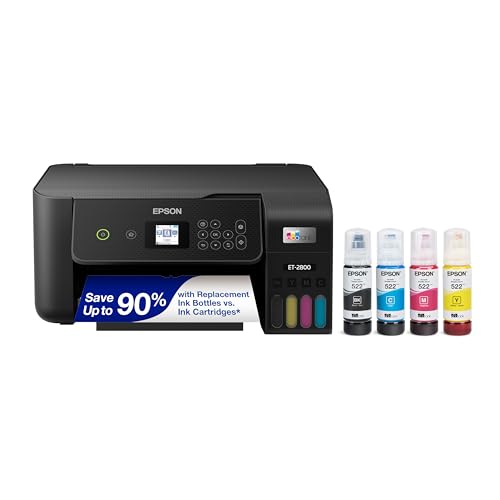
Epson EcoTank ET-2800 Wireless Color All-in-One

Our verdict: A refillable-ink printer with standard wireless support, for households where the Chromebook prints every week.

Epson's ET-2800 swaps cartridges for a refillable ink tank, adds scan and copy, and lists standard wireless protocol support. It sits in the $100 to $200 range and fits a small desk.

It takes the top spot because Chromebook households tend to print school assignments, forms and the occasional photo, which adds up in cartridge costs. Refillable bottles cut the cost per page considerably, and the printer rarely stops mid-assignment because of an empty cartridge. Standard wireless support means the Chromebook can find it on the network without a driver. It sits above the cheaper HP and Canon models because the running cost is the difference between a printer you tolerate and one you like.

Choose it if more than a couple of people print. The caveat is a higher upfront price, and the lack of a document feeder means multi-page scans are slow.

Ink system
Cartridge-free tank
Functions
Print, scan, copy
Connectivity
Standard wireless protocol
Footprint
Compact for a small desk

What we like

  • +Lower long-run ink cost
  • +Standard wireless protocol support
  • +Compact for a small desk
  • +Scan and copy included

Watch out for

  • −No automatic document feeder
  • −Higher upfront price than cartridge models

Buy it if: Chromebook households that print every week.

Skip it if: You print only a few pages a month.

2

Best for Homework Volume

Brother DCP-L2640DW Wireless Compact Monochrome Laser Printer

Our verdict: A mono laser with duplex and a 250-sheet tray, for text-heavy assignments printed in bulk.

Brother's DCP-L2640DW uses a monochrome laser engine with duplex printing, a 250-sheet paper tray and Alexa support, plus standard wireless protocol listing. It costs $200 to $500.

It ranks second because text assignments are the main job for most Chromebook users. Laser toner does not dry out or clog if the printer sits idle over a holiday, which is a common failure for inkjets in households that print in bursts. Duplex printing halves the paper for long readings, and the large tray means fewer reloads. The cost is no color, so science posters and photos need another solution.

Buy it if the Chromebook is mainly for school or work documents. Skip it if you need color for projects.

Engine
Monochrome laser
Duplex
Automatic
Tray
250 sheets
Extras
Works with Alexa

What we like

  • +Toner does not dry out
  • +Duplex printing saves paper
  • +250-sheet tray means fewer reloads
  • +Standard wireless protocol support

Watch out for

  • −Black and white only
  • −Highest upfront cost here

Buy it if: Families printing lots of text-based assignments.

Skip it if: Color projects are common in your house.

3

Best Setup Screen

Brother Work Smart MFC-J1360DW Wireless Color Inkjet All-in-One

Our verdict: A small color display and automatic duplex make connection problems easier to solve.

The Brother Work Smart MFC-J1360DW carries a 1.8 inch color display, automatic duplex printing, standard wireless protocol support and LC501 series ink cartridges. It falls in the $100 to $200 range.

It ranks third because the screen matters more than it sounds. When a Chromebook cannot find a printer, the usual cause is a network change or a dropped connection, and an on-device display lets you see the network name and reconnect without a phone app or a PC. Duplex printing is a bonus for schoolwork. The limit is cartridge ink, which costs more per page than a tank model.

Pick it if you want an easy-to-recover printer for a family. Skip it if ink cost is your main worry.

Display
1.8 inch color
Duplex
Automatic
Ink
LC501 series cartridges
Connectivity
Standard wireless protocol

What we like

  • +Screen helps fix connection issues
  • +Automatic duplex printing
  • +Standard wireless protocol support
  • +Mid-range price

Watch out for

  • −Cartridge ink costs more per page
  • −No feeder listed

Buy it if: Families who want an easy way to reconnect the printer.

Skip it if: You print enough that cartridge costs add up.

4

Best Wired Fallback

Epson EcoTank ET-4800 Wireless All-in-One

Our verdict: Ink tank economics plus Ethernet and a feeder, for a home office with a Chromebook.

Epson's ET-4800 uses the same cartridge-free ink system as the ET-2800 and adds an automatic document feeder, Ethernet alongside wireless, and fax. It costs $100 to $200 and lists standard wireless protocol support.

It ranks fourth, below the ET-2800, only because most Chromebook homes do not need the extras. Where it earns its place is the wired option: if Wi-Fi misbehaves, a cable to the router keeps the printer on the network, which stops the common problem of a printer disappearing from the list. The feeder lets a student scan a multi-page worksheet in one go.

Choose it if the printer sits near the router or doubles as a home office scanner. Skip it if you want the cheapest ink-tank option.

Ink system
Cartridge-free tank
Feeder
Automatic document feeder
Connectivity
Ethernet and wireless
Functions
Print, scan, copy, fax

What we like

  • +Ethernet gives a wired fallback
  • +Document feeder for multi-page scans
  • +Lower long-run ink cost
  • +Full scan, copy and fax set

Watch out for

  • −Bulkier than the ET-2800
  • −Fax is rarely needed

Buy it if: Chromebook home offices near the router.

Skip it if: You want the smallest, cheapest tank printer.

5

Best AirPrint Listing

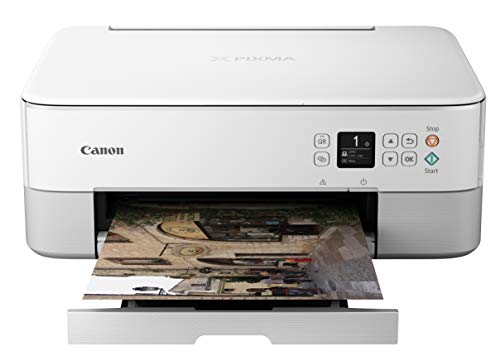
Canon PIXMA TS5320 All-in-One Wireless Printer with AirPrint

Our verdict: The listing advertises AirPrint, the nearest thing here to a confirmed driverless protocol.

Canon's PIXMA TS5320 is a wireless all-in-one with AirPrint advertised, Alexa support and a standard cartridge inkjet engine. It is in the $100 to $200 range.

It lands fifth because AirPrint is a point in its favor. It is Apple's network printing standard, and a printer that supports it usually also supports the open protocols Chrome OS uses to find printers without a driver. That is an inference and not a certification, so confirm it on the setup screen. The cartridge system is the weak point for a household that prints often.

Buy it if you share the printer with iPhones and iPads as well as a Chromebook. Skip it if you want the lowest ink cost, where an EcoTank wins.

Protocol
AirPrint advertised
Ink system
Standard cartridges
Voice
Works with Alexa
Type
Wireless all-in-one

What we like

  • +AirPrint listing signals open protocols
  • +Works with Alexa
  • +Good for mixed Apple and Chrome homes
  • +Compact design

Watch out for

  • −Cartridge ink adds up
  • −Chrome OS support is not certified

Buy it if: Homes that mix Chromebooks with iPhones and iPads.

Skip it if: Running cost matters more than protocol.

6

Best Budget Starter

HP DeskJet 4355 Wireless All-in-One Color Inkjet Printer

Our verdict: A budget wireless printer for Chromebook homes with light printing needs.

The DeskJet 4355 from HP is a compact wireless all-in-one with scan and copy, standard wireless protocol support and a 3-month Instant Ink trial. It is in the $50 to $100 range.

It ranks sixth because the low price comes with cartridge ink and a lighter-duty build. For a household that prints a few pages a week, the savings on the printer outweigh the cost of ink. The Instant Ink trial can lower ink costs for a time, but it is a subscription you need to manage.

Buy it for a light-duty Chromebook starter printer. Skip it if homework printing happens daily.

Functions
Print, scan, copy
Connectivity
Standard wireless protocol
Ink plan
3-month Instant Ink trial
Price bucket
$50 to $100

What we like

  • +Cheapest way to print
  • +Compact footprint
  • +Standard wireless protocol support
  • +Instant Ink trial included

Watch out for

  • −Cartridge ink runs out fast
  • −No duplex or feeder

Buy it if: Light printing in a budget Chromebook household.

Skip it if: Printing is a daily task.

7

Best Feeder at a Low Price

Canon PIXMA TR4720 All-in-One Wireless Printer

Our verdict: A cheap printer with an automatic document feeder for multi-page scanning.

Canon's PIXMA TR4720 includes an auto document feeder, a built-in fax, mobile printing support and standard wireless protocol listing. It costs $50 to $100.

It ranks last because most Chromebook households will use scanning less than printing, and the cartridge system makes printing more expensive over time. The feeder is useful for scanning permission slips and forms, and mobile printing lets phones join in. The fax is a legacy feature that will go unused.

Choose it if your Chromebook household scans paper often on a tight budget. Skip it if your priority is cheap printing.

Feeder
Auto document feeder
Fax
Built-in legacy fax
Mobile
Mobile printing support
Price bucket
$50 to $100

What we like

  • +Feeder at a low price
  • +Mobile printing support
  • +Standard wireless protocol support
  • +Low upfront price

Watch out for

  • −Cartridge ink is costly
  • −Legacy fax goes unused

Buy it if: Families scanning paperwork on a tight budget.

Skip it if: You print mostly and scan rarely.

Methodology

How We Ranked These

Driverless wireless support

We looked for standard wireless protocol and AirPrint listings, since a Chromebook needs a printer it can find without a manufacturer driver.

Running cost

Ink tank, cartridge and laser toner systems were compared on cost per page and on how well they cope with long idle periods.

Scanning and paper handling

Automatic document feeders, duplex printing and tray size were weighed against typical school and home paperwork.

Connection recovery

On-device screens and wired Ethernet were scored on how easily a printer comes back after a network change.

Value across budgets

Features were set against the $50 to $100, $100 to $200 and $200 to $500 buckets in this guide.

Every Primea Score uses the same weights: Performance 30% · Build & Materials 20% · Everyday Usability 20% · Value 20% · Owner Satisfaction 10%. Full scoring rules

Buyer's guide

How to Pick the Right One for You

By Printing Habit

How much and what you print decides the engine type.

HabitOur pick
Weekly mixed printingEpson EcoTank ET-2800 Wireless Color All-in-One
Lots of text homeworkBrother DCP-L2640DW Wireless Compact Monochrome Laser
Occasional light printingHP DeskJet 4355 Wireless All-in-One Color Inkjet Printer
Printing plus paper scanningEpson EcoTank ET-4800 Wireless All-in-One

By Budget

SpendOur pick
$50 to $100 (lowest price)HP DeskJet 4355 Wireless All-in-One Color Inkjet Printer
$50 to $100 (with feeder)Canon PIXMA TR4720 All-in-One Wireless Printer
$100 to $200 (lower ink cost)Epson EcoTank ET-2800 Wireless Color All-in-One
$100 to $200 (easy recovery)Brother Work Smart MFC-J1360DW Wireless Color Inkjet
$200 to $500Brother DCP-L2640DW Wireless Compact Monochrome Laser

Inkjet vs Laser

Inkjet

Prints color and photos and costs less up front, but ink dries out if the printer sits idle. Picks: the two Epson EcoTank models, Brother MFC-J1360DW, Canon TS5320, HP DeskJet 4355 and Canon TR4720.

Laser

Prints crisp text fast and the toner lasts through idle spells, but only in black and white here. Pick: Brother DCP-L2640DW.

Default to an ink tank inkjet if you need color, and the laser if schoolwork is mostly text.

By Network Setup

SetupOur pick
Printer near the router, wired optionEpson EcoTank ET-4800 Wireless All-in-One
Needs on-device troubleshootingBrother Work Smart MFC-J1360DW Wireless Color Inkjet
Mixed Chromebook and iPhone homeCanon PIXMA TS5320 All-in-One Wireless Printer
Simple Wi-Fi onlyEpson EcoTank ET-2800 Wireless Color All-in-One

For School Use Specifically

Look for

Standard wireless protocol support, duplex printing for long readings, a large paper tray and a running cost you can live with when the term gets busy.

In this ranking

The Brother DCP-L2640DW for text assignments, or the Epson ET-2800 when science projects and photos also need printing.

When to Spend More

Spend more if

Several people print weekly or you want fewer interruptions. The Epson EcoTank models and the Brother laser repay their price over time.

Save if

You print a few pages a month. The HP DeskJet 4355 or Canon TR4720 will cover it.

Questions

Frequently Asked Questions

Will my Chromebook print without installing a driver?+

Usually yes, if the printer supports standard network printing. Open Settings, choose Printers, and add the printer from the list. If it does not show up, check that both devices are on the same network.

What is the biggest mistake with Chromebook printers?+

Buying a printer that depends on a Windows or Mac installer. Chromebooks cannot run those, so you need a network-ready printer. Check for wireless protocol or AirPrint support in the listing.

Is an EcoTank worth it over a cheaper printer?+

If you print weekly, yes. The refillable ink cuts running cost and prevents mid-assignment shortages. If you print rarely, a cheaper cartridge printer costs less overall.

How do I add a printer to a Chromebook?+

Connect the printer to Wi-Fi, then open Settings on the Chromebook and select Printers. Choose to add a printer, pick yours from the list and save. A test page confirms the link.

Why does my printer disappear from the list?+

Usually a network change, a router restart or the printer going to sleep. Reconnect the printer to the same Wi-Fi network as the Chromebook, or use an Ethernet cable if the model has a port.

Can I scan from a Chromebook?+

Yes, through the printer maker's app or a web scan page. Check your printer's listing for scan support, and use a document feeder model if you scan multi-page forms.

Final take

The Epson EcoTank ET-2800 is the best printer for most Chromebook households, thanks to its standard wireless support and low ink cost. The Brother DCP-L2640DW is the pick for text-heavy schoolwork, the Brother MFC-J1360DW has the easiest recovery, and the ET-4800 adds a wired option. Start with the connection, then choose by how much you print.

More Ranked & Reviewed Guides