
Primea ReviewsAll Reviews

Primea Reviews is reader-supported. When you buy through our Amazon links we may earn a commission, at no extra cost to you. Rankings are set by our editors and never sold. Learn more

Ranked & Reviewed by Primea Reviews

The 8 Best Docking Stations for MacBook Air of 2026, Ranked & Reviewed

By the Primea Editorial TeamUpdated November 1, 202610 min read8 products ranked
The 8 Best Docking Stations for MacBook Air of 2026, Ranked & Reviewed

The short answer

The Plugable TBT-UDM is the best overall, a certified Thunderbolt 4 dock with 100W charging and no drivers. The TobenONE 18-in-2 is the dual 4K choice through DisplayLink, the Anker DL6350 adds a third screen, and the WAVLINK reaches 5K. The cheaper PULWTOP, Anker 8-in-1 and UGREEN hubs cover budget and travel use.

The Primea Scoreboard

Ranked & Reviewed

  1. Certified Thunderbolt 4, 100W charging and a driverless setup.

    93Outstanding
    Check price
  2. DisplayLink dual 4K at 60Hz with a 150W power adapter and 2.5G Ethernet.

    91Excellent
    Check price
  3. Three displays through DisplayLink with dual HDMI and DisplayPort.

    89Excellent
    Check price
  4. Dual displays up to 5K, with HDMI and DisplayPort and 130W charging.

    87Excellent
    Check price
  5. Dual 4K, a 150W charger and compatibility from M1 through M5.

    85Excellent
    Check price
  6. Dual HDMI at 4K and 60Hz for under $100.

    83Very Good
    Check price
  7. Dual HDMI, 85W Power Delivery and Gigabit Ethernet for little money.

    81Very Good
    Check price
  8. The smallest and cheapest pick here, with dual HDMI or one 8K output.

    79Very Good
    Check price

The MacBook Air has one hard limit that decides which dock you should buy. On most chips it drives a single external display natively. Any dock that advertises two monitors on an Air either leans on DisplayLink software to fake the second screen or quietly mirrors it, and a listing will not always tell you which. Buying on port count alone misses that entirely.

Our editors reviewed eight docks and hubs across that divide: one certified Thunderbolt dock for a clean single or 6K display, several DisplayLink docks for two or three screens, and plain hubs for travel. Rankings weigh display method, charging wattage, chip compatibility and port speeds, so check your Air's chip generation against each listing before ordering.

Before you buy

What Actually Matters

01

Know your Air's display limit

Most MacBook Air chips drive one external display natively. A hub that advertises dual HDMI will usually mirror the second screen on those, or extend it only with DisplayLink software. Check your Air's tech specs page for the supported external displays, then match the dock to that number before you shop.

02

DisplayLink is a trade-off

DisplayLink adds extra screens by compressing video through a driver, and it needs a one-time install. It works well for documents and calls but can stutter on fast video. If you only need one screen, skip it and take a native dock. Look for the word DisplayLink in the listing, and check macOS support before you buy.

03

Charging wattage

A MacBook Air needs far less than a Pro, roughly 30 to 45W. Any dock giving 65W or more charges it with room to spare. Look for passthrough wattage in the specs, and for a bundled charger if you want to avoid carrying a second brick. A dock without a charger needs your own, so add that cost.

04

Chip generation compatibility

Some docks list support for specific chips, such as M1 through M4 or M5. Check that your chip appears on the list, and that macOS is current, since driver support follows the operating system. Newer Airs may use Thunderbolt, while older ones use USB-C. Look in the listing compatibility section, not only the title, because titles often oversell compatibility.

05

USB speed for storage

5Gbps is fine for a keyboard and mouse. If you copy photos or video to an SSD, look for 10Gbps ports or Thunderbolt, which feel noticeably faster on large files. Compare the stated speed of each port, since a dock may mix speeds, and read whether the USB-C port is data only or also display capable.

In-depth reviews

Our Ranked Picks, Reviewed

1

Best Overall

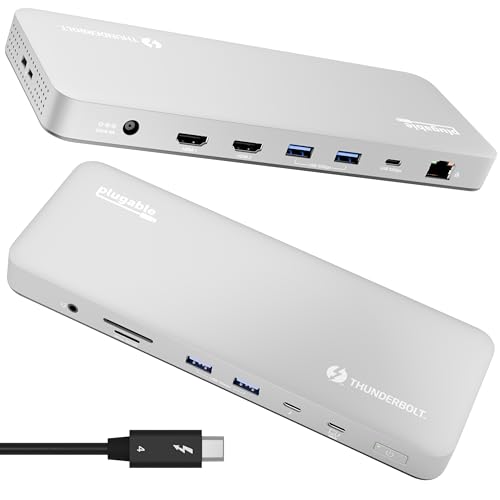
Plugable Thunderbolt 4 Dock for M4/M5 MacBook Air & Pro (TBT-UDM)

Our verdict: Certified Thunderbolt 4, 100W charging and a driverless setup.

The TBT-UDM is the only certified Thunderbolt 4 dock here, running at 40Gbps with 100W charging. It drives dual 4K HDMI or one 6K display depending on your chip, adds six USB ports, an SD slot and Ethernet, and needs no drivers. That driverless link matters because it carries video natively, with no compression layer.

It ranks first because a certified controller keeps the connection stable, and it is the dock built for the newer Thunderbolt Airs. The DisplayLink hubs below reach more screens, but only by software and a driver install.

Buy it for a newer Air with one high-quality monitor. The caveat: the second display depends on your chip, and it needs a Thunderbolt port, so an older Air without one cannot use it. It also costs the most in the guide.

Connection
Thunderbolt 4, 40Gbps
Displays
Dual 4K HDMI or one 6K
Charging
100W
Ports
6 USB, SD, Ethernet

What we like

  • +Certified Thunderbolt 4
  • +100W charging
  • +No drivers needed
  • +6K display support

Watch out for

  • −Priciest in the guide
  • −Dual display depends on the chip
  • −Needs a Thunderbolt Air

Buy it if: Newer Airs with one high-quality monitor.

Skip it if: Your Air has no Thunderbolt port.

2

Best Dual-Monitor Dock

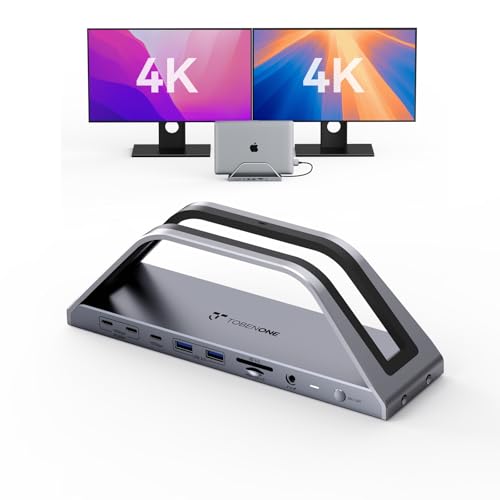
TobenONE 18-in-2 Docking Station Dual Monitor for MacBook Pro/Air

Our verdict: DisplayLink dual 4K at 60Hz with a 150W power adapter and 2.5G Ethernet.

The TobenONE 18-in-2 solves the Air's actual problem, a second monitor. DisplayLink pushes a second 4K signal at 60Hz through HDMI and USB-C, a 150W power adapter comes in the box, and the dock adds seven USB ports, 10Gbps USB-C, 2.5G Ethernet and an SD 4.0 reader.

It ranks second behind the Plugable because DisplayLink compresses video through a driver. For spreadsheets and calls, that is invisible. The 17-in-2 sibling is close but older, and the PULWTOP gives dual 4K for less with fewer ports.

Buy it if you need two extended screens on an Air. The caveats are a one-time driver install, compression on fast video and a large adapter brick. A dock that powers everything from a 150W supply needs desk space.

Displays
4K at 60Hz, HDMI and USB-C
Power
150W adapter
Network
2.5G Ethernet
USB
7 ports, 10Gbps USB-C

What we like

  • +Dual 4K via DisplayLink
  • +150W adapter included
  • +2.5G Ethernet
  • +SD 4.0 reader

Watch out for

  • −Needs a DisplayLink driver
  • −Video is compressed
  • −Big adapter on the desk

Buy it if: Air owners who need two external screens.

Skip it if: You want a driverless setup.

3

Best Triple Display

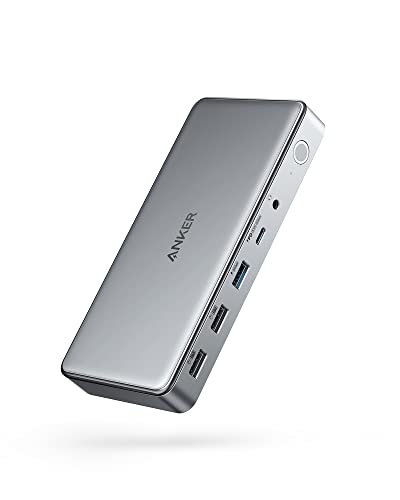
Anker Docking Station DL6350, 10-Port Triple Display with DisplayLink

Our verdict: Three displays through DisplayLink with dual HDMI and DisplayPort.

The DL6350 is the three-screen answer. It uses DisplayLink to feed dual HDMI plus DisplayPort across 10 ports, and works with Windows PCs as well as MacBook Air and Pro. Anker's driver support is mature, which counts when macOS updates break lesser drivers.

It ranks third because three screens is a niche need. The TobenONE gives two screens with more power and ports. If you do want three monitors on a fanless Air, nothing else here delivers that.

Buy it for a trading or monitoring desk where a wide wall of screens matters more than motion quality. The caveat: all three screens go through compression, and the driver is mandatory. Pay for this only if you will use the third screen, because it costs more than the dual-monitor docks.

Displays
Triple via DisplayLink
Outputs
Dual HDMI plus DisplayPort
Ports
10 total
OS
Windows and macOS

What we like

  • +Three displays on an Air
  • +HDMI and DisplayPort
  • +Mature DisplayLink driver
  • +Works with Windows too

Watch out for

  • −Driver required
  • −Compressed video on all screens
  • −Higher price for a niche need

Buy it if: Three-monitor desks on a MacBook Air.

Skip it if: Two screens are enough.

5

Best M1 to M5 Coverage

TobenONE 17-IN-2 MacBook Docking Station Dual 4K Monitor

Our verdict: Dual 4K, a 150W charger and compatibility from M1 through M5.

The TobenONE 17-in-2 offers dual 4K through DisplayLink, a 150W charger, seven USB ports up to 10Gbps and 2.5G Ethernet. The listing states compatibility with M1 through M5 chips, which helps when an older Air and a newer one share a desk.

It ranks fifth because the 18-in-2 sits above it in the same line with a USB-C display output, and the specs are otherwise close. Next to the PULWTOP it adds a bigger charger and faster Ethernet, so it is the better buy if you want power and networking in one box.

Buy it when you want a bundled charger and the widest chip coverage. The caveats are DisplayLink compression and a large brick. Skip it if you want a native Thunderbolt link, which only the Plugable provides.

Displays
Dual 4K
Charger
150W included
Network
2.5G Ethernet
Chips
M1 through M5

What we like

  • +150W charger included
  • +2.5G Ethernet
  • +M1 to M5 compatibility
  • +Seven USB ports

Watch out for

  • −DisplayLink compression
  • −Large charger brick
  • −Sits below the 18-in-2

Buy it if: Older and newer Airs sharing one desk.

Skip it if: You want a native Thunderbolt link.

6

Best Budget Dual Monitor

PULWTOP MacBook Pro Docking Station Dual Monitor 4K@60Hz

Our verdict: Dual HDMI at 4K and 60Hz for under $100.

The PULWTOP is the cheapest way to get two screens on an Air. Dual HDMI at 4K and 60Hz runs through DisplayLink, with 10Gbps USB-A and USB-C data, SD and TF slots, a USB 2.0 port, Ethernet and PD charging passthrough. It sits in the $50 to $100 bucket.

It ranks sixth because the TobenONE models add chargers and faster Ethernet, and the brand is less known. The savings come with a driver install and no listed charger, so you must supply your own.

Buy it for a budget dual monitor desk where spreadsheets and email dominate. Skip it if brand support matters to you. A lesser known brand may be slower to update drivers when macOS changes, so keep the box and receipt.

Displays
Dual HDMI 4K at 60Hz
Data
10Gbps USB-A and USB-C
Cards
SD and TF
Charging
PD passthrough

What we like

  • +Cheapest dual monitor option
  • +10Gbps data ports
  • +SD and TF readers
  • +PD charging passthrough

Watch out for

  • −Lesser known brand
  • −Driver required
  • −Charger not listed

Buy it if: Budget dual monitor desks.

Skip it if: Brand support is important to you.

7

Best Budget Hub

Anker Laptop Docking Station Dual Monitor, 8-in-1 USB C Hub

Our verdict: Dual HDMI, 85W Power Delivery and Gigabit Ethernet for little money.

The Anker 8-in-1 is a plain USB-C hub with dual HDMI, 85W Power Delivery, Gigabit Ethernet and an SD reader, and it sits in the $50 to $100 bucket. The charger is not included.

It ranks seventh because on a base-chip Air a hub without DisplayLink will mirror the second screen instead of extending it, which defeats the purpose of two monitors. It beats the UGREEN on port count.

Buy it for a simple desk with one monitor, Ethernet and a card reader. The caveat is the dual HDMI claim: confirm that your Air supports two extended displays before expecting both to behave as separate desktops. Without a charger in the box, factor in a separate power brick of your own.

Displays
Dual HDMI, 4K
Power
85W PD
Network
Gigabit Ethernet
Charger
Not included

What we like

  • +Very low price
  • +Dual HDMI outputs
  • +Gigabit Ethernet
  • +SD card reader

Watch out for

  • −Charger not included
  • −Dual screens may only mirror
  • −Basic port mix

Buy it if: One monitor, Ethernet and a card reader.

Skip it if: You need two extended screens on a base chip.

8

Best Pocket Hub

UGREEN 10-in-1 USB C Docking Station, Revodok Pro 210

Our verdict: The smallest and cheapest pick here, with dual HDMI or one 8K output.

The Revodok Pro 210 is a compact 10-in-1 hub with dual HDMI at 4K and 60Hz or one 8K at 30Hz, 100W Power Delivery, 5Gbps data, Gigabit Ethernet and SD and TF readers. It is the smallest and cheapest pick in the guide.

It ranks last because it is a hub, not a dock, and 5Gbps is the slowest data speed here. Dual display output also depends on your chip, so an Air may drive only one screen from it.

Buy it for travel and one extra monitor. The caveat: copying photos or video to an external SSD will be slower than on the 10Gbps docks. For a permanent desk, one of the TobenONE docks or the Plugable is a better foundation.

Displays
Dual HDMI 4K or one 8K
Power
100W PD
Data
5Gbps
Size
Compact

What we like

  • +Smallest and cheapest
  • +100W Power Delivery
  • +SD and TF readers
  • +Gigabit Ethernet

Watch out for

  • −5Gbps data only
  • −Hub, not a dock
  • −Dual screens depend on your chip

Buy it if: Travel with one extra monitor.

Skip it if: You need fast external storage.

Methodology

How We Ranked These

Display method

We separated native Thunderbolt output from DisplayLink and ranked each against the Air's single-display limit.

Driver burden

Driverless docks scored above those needing DisplayLink software, since drivers add setup and compression.

Charging power

Passthrough wattage was checked against what a MacBook Air needs, with extra credit for included chargers.

Port mix

We compared USB speed, Ethernet and card readers, not just total ports.

Value in bracket

Each model was compared with others at a similar price on the spec sheet.

Every Primea Score uses the same weights: Performance 30% · Build & Materials 20% · Everyday Usability 20% · Value 20% · Owner Satisfaction 10%. Full scoring rules

Buyer's guide

How to Pick the Right One for You

By Number of Screens

Your monitor count narrows the field fast.

ScreensOur pick
One high-quality monitorPlugable Thunderbolt 4 Dock (TBT-UDM)
Two screensTobenONE 18-in-2 Docking Station
Three screensAnker Docking Station DL6350
Two 5K or mixed-input monitorsWAVLINK USB C Docking Station Dual Monitor
One extra screen on the roadUGREEN 10-in-1 USB C Docking Station, Revodok Pro 210

By Budget

SpendOur pick
Under $50UGREEN 10-in-1 USB C Docking Station, Revodok Pro 210
$50 to $100PULWTOP MacBook Pro Docking Station Dual Monitor
$150 to $200TobenONE 18-in-2 Docking Station
$200 and upPlugable Thunderbolt 4 Dock (TBT-UDM)

Native Thunderbolt vs DisplayLink

Native Thunderbolt

Clean video, no driver and high bandwidth, but limited by the Air's chip. Pick: Plugable TBT-UDM.

DisplayLink

Adds screens beyond the chip's limit with a driver and some compression. Picks: TobenONE 18-in-2, TobenONE 17-in-2, Anker DL6350, WAVLINK, PULWTOP.

Default to native Thunderbolt if one monitor is enough; choose DisplayLink only when you need a second or third screen.

By Charging Preference

NeedOur pick
Charger includedTobenONE 17-IN-2 MacBook Docking Station
Highest passthrough wattageWAVLINK USB C Docking Station Dual Monitor
Charge and carry lightAnker Laptop Docking Station 8-in-1
Passthrough from your own chargerPULWTOP MacBook Pro Docking Station

For a Home Office Setup Specifically

Look for

Ethernet for steadier video calls, one or two monitors, and enough USB ports for a webcam, keyboard and drive.

In this comparison

The TobenONE 18-in-2 gives dual 4K, 2.5G Ethernet and seven USB ports. If one screen is enough, the Plugable TBT-UDM is cleaner.

When to Spend More

Spend more if

You want no drivers and a stable single monitor. The Plugable TBT-UDM's certified Thunderbolt link is what the extra money buys.

Save if

You need two screens for email and documents. The PULWTOP delivers them for far less.

Questions

Frequently Asked Questions

Can a MacBook Air run two external monitors?+

Natively, most cannot. With DisplayLink docks such as the TobenONE 18-in-2 or Anker DL6350 you can, at the cost of a driver install and compressed video that suits documents better than motion.

Do I need a Thunderbolt dock for a MacBook Air?+

Not unless you want a native single-screen dock. The Plugable TBT-UDM is the Thunderbolt option and drives dual 4K or one 6K, depending on chip. Cheaper hubs cover the basics for a single screen and a few peripherals.

Is the TobenONE worth more than the PULWTOP?+

If you want a charger included and faster Ethernet, yes. The TobenONE models bundle a 150W adapter and 2.5G Ethernet. For just two screens the PULWTOP is enough and costs far less, so the extras are the only real reason to upgrade.

Will a hub charge my Air while docked?+

Yes, through passthrough Power Delivery. An Air needs about 30 to 45W, which every dock here exceeds, including the 85W Anker and the 100W UGREEN, though some require your own charger. Only the TobenONE docks bundle one.

Does DisplayLink work well for video?+

It handles documents and calls fine but can struggle with fast motion, since the video is compressed. Prefer native output, like the Plugable, for gaming or video editing, where compression artifacts and latency show up.

Can I use these docks with a Windows PC?+

The Anker DL6350 and WAVLINK both list Windows support, so a work PC and a MacBook can share one dock. Check each listing before assuming, since not all do, and Windows drivers may differ from the Mac ones.

Final take

Buy the Plugable if one clean display is enough and your Air has Thunderbolt. Pick the TobenONE 18-in-2 for two screens, the Anker DL6350 for three, and the PULWTOP for the cheapest second monitor. Treat the Anker 8-in-1 and UGREEN as hubs that may only mirror a second display on a base chip.

More Ranked & Reviewed Guides