
Primea ReviewsAll Reviews

Primea Reviews is reader-supported. When you buy through our Amazon links we may earn a commission, at no extra cost to you. Rankings are set by our editors and never sold. Learn more

Ranked & Reviewed by Primea Reviews

The 5 Best Docking Stations for 4K 120Hz Monitors of 2026, Ranked & Reviewed

By the Primea Editorial TeamUpdated November 1, 202610 min read5 products ranked
The 5 Best Docking Stations for 4K 120Hz Monitors of 2026, Ranked & Reviewed

The short answer

The TobenONE 18-in-1 DisplayLink dock is the best for 4K 120Hz monitors: up to five displays with quad 4K at 120Hz on Windows, five HDMI outputs, 45W charging and 2.5GbE for $200 to $500. The KVM dock states 4K120Hz for two computers, and the USB C dock reaches 4K 144Hz for less.

The Primea Scoreboard

Ranked & Reviewed

  1. Quad 4K at 120Hz and five HDMI outputs, for Windows.

    94Outstanding
    Check price
  2. Switch two monitors between two PCs with a stated 4K120Hz path.

    91Excellent
    Check price
  3. Two monitors at up to 4K 144Hz for the lowest outlay.

    88Excellent
    Check price
  4. A KVM dock with an 8K ceiling and EDID emulation.

    83Very Good
    Check price
  5. Driverless native Thunderbolt video for M4 and M5 MacBooks.

    80Very Good
    Check price

Plenty of docks say 4K on the box and quietly cap you at 60Hz once two monitors are plugged in. A 4K 120Hz monitor needs a dock that states that refresh rate for your exact setup, and the stated figure is the first thing to check, not the port count. Bandwidth is the real limit: two high-refresh 4K streams consume far more than one.

We reviewed five docks on paper, ranking them on stated refresh rate, number of displays, host compatibility and extras like charging and Ethernet. Three of the five state high refresh rates directly. The other two are included as alternates, and you should verify refresh on those listings before buying, because a missing figure usually means 60Hz.

Before you buy

What Actually Matters

01

Stated refresh rate

Refresh rate is how often the picture updates, and 4K 120Hz needs bandwidth most docks lack. Many cap at 60Hz with two screens. Look for 4K@120Hz in the title or bullets and check how many monitors it applies to. The TobenONE states quad 4K at 120Hz, the USB C dock 144Hz for two.

02

DisplayLink vs native

DisplayLink compresses video over USB and needs a driver, while Thunderbolt carries video natively. The TobenONE is DisplayLink and the Plugable is native. The listing names which one it uses. DisplayLink reaches more screens, while native video suits drivers-averse Mac users. Ask whether your laptop's GPU can output that many streams.

03

KVM switching

A KVM dock lets two computers share monitors and peripherals. It matters if you work on a laptop and a desktop. Look for KVM and the number of computers supported. The KVM dock and AV Access both list two computers. EDID emulation keeps screens from rearranging at each switch. Without it, windows jump around when you change computers.

04

Power delivery

Docks charge your laptop through the same cable. Wattage varies from 45W to 100W per PC. Match the number to your laptop's charger rating. The KVM dock lists 100W per PC, the Plugable 100W for MacBooks, and the TobenONE 45W, which may be slow for a gaming laptop. Plug in the laptop's own charger if the dock falls short.

05

Host compatibility

Some docks suit Windows, others Macs. The TobenONE 120Hz mode is for Windows with a driver. Check the compatibility line for your OS, and note that DisplayLink on macOS can have limits. Check the driver page for your macOS version before ordering. The Plugable lists M4 and M5 MacBook support.

In-depth reviews

Our Ranked Picks, Reviewed

1

Best Overall

TobenONE 18-in-1 DisplayLink Docking Station (DL7400)

Our verdict: Quad 4K at 120Hz and five HDMI outputs, for Windows.

The TobenONE DL7400 is an 18-in-1 DisplayLink dock that supports up to five monitors, with quad 4K at 120Hz on Windows. It has five HDMI outputs with a cooling fan, 45W fast charging and 2.5GbE Ethernet, and sells for $200 to $500. DisplayLink compresses video over USB, which is how it reaches so many screens.

It ranks first because it states 4K at 120Hz across several screens, which none of the others do. Compared with the KVM dock below it, you get more displays, though you must install a driver and it is Windows-focused. A fan keeps the unit cool under load.

Buy it for multi-monitor Windows desks. The caveats are the driver install and the price tier. Skip it if you use a Mac or dislike drivers.

Displays
Up to 5, quad 4K at 120Hz
Outputs
5x HDMI, cooling fan
Charging
45W
Network
2.5GbE Ethernet

What we like

  • +Quad 4K at 120Hz
  • +Five HDMI outputs
  • +2.5GbE Ethernet
  • +Cooling fan included

Watch out for

  • −Driver install required
  • −Windows-focused 120Hz

Buy it if: Windows users running several monitors at 4K 120Hz.

Skip it if: You use a Mac or dislike drivers.

2

Best KVM Dock

KVM Switch 2 Monitors 2 Computers Docking Station, 4K60Hz/4K120Hz

Our verdict: Switch two monitors between two PCs with a stated 4K120Hz path.

This 13-in-1 KVM dock drives two monitors from two computers, with 4K60Hz and 4K120Hz listed. It provides 100W power delivery per connected PC, 1G Ethernet and an aluminum case, and it is plug and play. It sells for $100 to $200. A KVM function swaps keyboard, mouse and screens between machines with one press.

It ranks second because it handles two computers, which the TobenONE does not, but supports fewer displays. It sits in a lower price bracket, so it is cheaper too. Against the USB C dock, it adds KVM switching and 100W per PC for a higher price.

Choose it if you share monitors between a laptop and a desktop. The caveat is that the 120Hz path applies to the setup the listing describes, so read it carefully. Skip it if you need more than two displays.

Setup
2 monitors, 2 computers
Refresh
4K60Hz / 4K120Hz
Power
100W PD per PC
Network
1G Ethernet

What we like

  • +Two computers, one setup
  • +Genuine 4K120Hz path listed
  • +100W PD per PC
  • +Plug and play

Watch out for

  • −Only two monitors
  • −1G Ethernet only

Buy it if: People sharing two monitors between two computers.

Skip it if: You need more than two displays.

3

Best Budget Dual Monitor

USB C Docking Station, Dual Monitor 4K@144Hz

Our verdict: Two monitors at up to 4K 144Hz for the lowest outlay.

This USB-C dock supports two monitors at up to 4K 144Hz, with 2x HDMI and 2x DisplayPort outputs. It adds USB-A 2.0 and 3.0 ports, a 10Gbps USB-C 3.1 port, a 150W DC power input, Ethernet and card readers. It sells for $50 to $100. Having both HDMI and DisplayPort outputs gives you options when a monitor favors one.

It ranks third because it supports only two displays and no KVM switching. It is the cheapest way here to reach a stated 144Hz. Against the TobenONE, it costs a fraction but offers two screens, not five.

Buy it for a dual 4K high-refresh desk on a budget. The caveat is that the listing's 144Hz figure needs a capable host to deliver it. Skip it if you want three or more displays.

Displays
Dual, up to 4K 144Hz
Outputs
2x HDMI, 2x DisplayPort
Power input
150W DC
Extras
Ethernet, SD readers

What we like

  • +Up to 4K at 144Hz
  • +HDMI and DisplayPort outputs
  • +Ethernet and card readers
  • +Lowest price here

Watch out for

  • −Only two monitors
  • −No KVM switching

Buy it if: Dual high-refresh desks on a tight budget.

Skip it if: You want three or more displays.

4

Best for Two Computers

AV Access 8K KVM Switch Dock, 2 Monitors 2 Computers

Our verdict: A KVM dock with an 8K ceiling and EDID emulation.

The AV Access dock is a KVM switch for two monitors and two computers, with an 8K resolution ceiling and gigabit Ethernet. EDID emulation keeps display detection consistent when you switch, and it switches both displays and peripherals together. It sells for $200 to $500. EDID emulation stops windows from jumping to the wrong screen.

It ranks fourth because the listing does not state a 4K 120Hz figure, unlike the KVM above it. Verify refresh before buying. Against the other KVM dock, it costs a tier more and lists a resolution ceiling rather than a refresh rate.

Choose it for a laptop-plus-desktop setup where consistent detection matters. The caveat is that refresh rate is not listed in our data. Skip it if a stated 4K120Hz path is required.

Setup
2 monitors, 2 computers
Resolution
8K ceiling
Detection
EDID emulation
Network
Gigabit Ethernet

What we like

  • +EDID emulation
  • +Switches peripherals too
  • +8K resolution ceiling
  • +Gigabit Ethernet

Watch out for

  • −No 120Hz figure listed
  • −Only two monitors

Buy it if: Switching two monitors between a laptop and a desktop.

Skip it if: A stated 4K120Hz path is required.

5

Best for New MacBooks

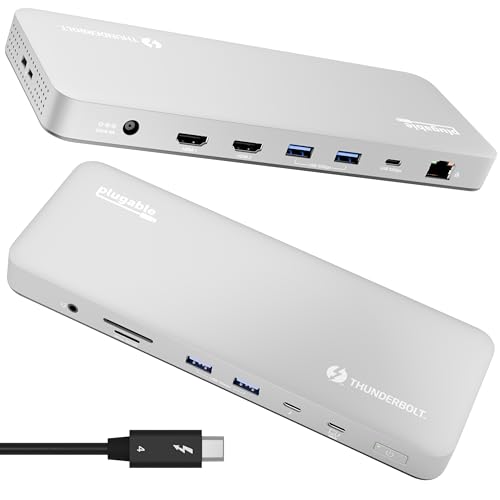
Plugable Thunderbolt 4 Dock for M4/M5 MacBook (TBT-UDM)

Our verdict: Driverless native Thunderbolt video for M4 and M5 MacBooks.

The Plugable TBT-UDM is a Thunderbolt 4 certified dock that needs no drivers. It supports dual 4K monitors or a single 6K display, with 100W charging for M4 and M5 MacBook Air and Pro. It has six USB ports, an SD card reader and Ethernet, and uses native Thunderbolt video rather than DisplayLink. It sells for $100 to $200.

It ranks last because no 120Hz figure is stated, so it is a fit for Mac users who value driverless video over a published refresh rate. Native Thunderbolt carries the picture without compression. Against the TobenONE, it avoids drivers but drives fewer screens.

Choose it for an M4 or M5 MacBook. The caveat is verifying the refresh rate for your monitors. Skip it if you need a stated 4K120Hz path.

Video
Dual 4K or single 6K
Charging
100W for M4/M5 MacBook
Certification
Thunderbolt 4, driverless
Ports
6x USB, SD, Ethernet

What we like

  • +Driverless setup
  • +Native Thunderbolt video
  • +100W MacBook charging
  • +Six USB ports

Watch out for

  • −No 120Hz figure listed
  • −Aimed at MacBooks

Buy it if: M4 and M5 MacBook owners who dislike drivers.

Skip it if: You need a stated 4K120Hz path.

Methodology

How We Ranked These

Stated refresh rate

Docks that state 4K at 120Hz or higher ranked above those that do not.

Display count

The number of monitors supported at the stated refresh rate.

Host compatibility

Windows, Mac and Thunderbolt support were compared.

Charging and ports

Power delivery, USB and Ethernet were weighed.

Setup effort

Driver-free docks scored above driver-dependent ones.

Every Primea Score uses the same weights: Performance 30% · Build & Materials 20% · Everyday Usability 20% · Value 20% · Owner Satisfaction 10%. Full scoring rules

Buyer's guide

How to Pick the Right One for You

By Number of Monitors

Start with how many screens you must drive.

MonitorsOur pick
Up to fiveTobenONE 18-in-1 DL7400
Two at high refreshUSB C Dual Monitor 4K@144Hz Dock
Two, two computersKVM Switch Dock 4K120Hz
Dual or one 6KPlugable Thunderbolt 4 TBT-UDM

By Budget

SpendOur pick
$50-100USB C Dual Monitor 4K@144Hz Dock
$100-200KVM Switch Dock 4K120Hz or Plugable TBT-UDM
$200-500TobenONE DL7400 or AV Access 8K KVM

DisplayLink vs Thunderbolt

DisplayLink

Needs a driver but supports many screens. The TobenONE DL7400 fits here.

Thunderbolt

Driverless and native. The Plugable TBT-UDM fits here.

Most buyers should choose DisplayLink only if they need more than two screens.

By Computer Setup

SetupOur pick
One Windows PCTobenONE DL7400
Laptop plus desktopKVM Switch Dock 4K120Hz
Consistent display detectionAV Access 8K KVM
M4/M5 MacBookPlugable TBT-UDM

For Gaming Setups Specifically

Look for

A stated 120Hz or 144Hz at 4K, and a host that can deliver it.

In this ranking

The USB C 4K@144Hz dock and the TobenONE DL7400 state high refresh.

When to Spend More

Spend more if

You run three or more screens, so the TobenONE DL7400 is worth it.

Save if

Two screens are enough, so the USB C 4K@144Hz dock does the job.

Questions

Frequently Asked Questions

Do all docks support 4K at 120Hz?+

No. Many cap at 60Hz, so check the listing for the stated figure. Three of the five here do, and the AV Access and Plugable do not. Treat a missing figure as 60Hz until the seller confirms.

What mistake do buyers make?+

They assume 4K support means 4K 120Hz. The refresh rate must be stated for the number of monitors you use, and the cable must support it too. A DisplayPort or HDMI cable rated for the bandwidth matters as much as the dock.

Is the TobenONE worth it over the budget dock?+

If you need more than two screens, yes. For two, the USB C 4K@144Hz dock costs far less. The TobenONE pays off only if you use four or five displays.

Do I need a driver?+

The TobenONE DisplayLink dock requires one, installed on Windows before the monitors work. The Plugable Thunderbolt dock is driverless, which suits locked-down work laptops. DisplayLink drivers need admin rights to install, so ask IT before buying the TobenONE for a managed machine.

How do I keep a multi-monitor dock cool?+

The TobenONE has a built-in cooling fan, which suits five-screen use that runs the chip hot. Give any dock airflow and avoid stacking items on it, especially the aluminum KVM dock. Heat shortens a dock's life, so leave a few inches on all sides.

Can a dock work with a Mac?+

The Plugable TBT-UDM is made for M4 and M5 MacBooks. The TobenONE 120Hz mode targets Windows, so Mac owners should check DisplayLink limits. Native Thunderbolt avoids those limits and keeps video smooth.

Final take

Buy the TobenONE for a multi-monitor Windows desk that needs high refresh on several screens. Choose the KVM dock to share two monitors between two computers, the USB C dock for a budget dual 4K 144Hz desk, and the Plugable for M4 or M5 MacBooks. The AV Access lists no refresh figure. Verify the stated refresh rate before anything else.

More Ranked & Reviewed Guides