
Primea ReviewsAll Reviews

Primea Reviews is reader-supported. When you buy through our Amazon links we may earn a commission, at no extra cost to you. Rankings are set by our editors and never sold. Learn more

Ranked & Reviewed by Primea Reviews

The 7 Best Docking Stations for Chromebooks of 2026, Ranked & Reviewed

By the Primea Editorial TeamUpdated November 1, 202610 min read7 products ranked
The 7 Best Docking Stations for Chromebooks of 2026, Ranked & Reviewed

The short answer

The Plugable 12-in-1 is the best docking station for Chromebooks, certified for ChromeOS with dual 4K through DisplayLink and built-in Ethernet. The Plugable UD-MSTH2 offers dual 4K at 60Hz driverless, and the Plugable Triple Display drives three screens on capable Chromebooks. The Anker 8-in-1 is the budget hub, and the Selore, the 14-in-1 hub and the Anker Prime serve niche needs.

The Primea Scoreboard

Ranked & Reviewed

  1. Chromebook certified, with dual 4K via DisplayLink.

    94Outstanding
    Check price
  2. Dual 4K 60Hz via two HDMI ports, driverless on ChromeOS.

    91Excellent
    Check price
  3. 03
    Plugable USB-C Triple Display Docking Station

    Best for Thunderbolt Chromebooks

    Plugable USB-C Triple Display Docking Station

    Three HDMI outputs and 100W charging for newer Chromebooks.

    88Excellent
    Check price
  4. An 8-in-1 hub with 85W PD for under $100.

    85Excellent
    Check price
  5. Triple 4K display with 100W PD at a budget price.

    82Very Good
    Check price
  6. A 14-in-1 hub packed with ports at the lowest price.

    80Very Good
    Check price
  7. A 160W dock that shares a Chromebook with a power-hungry laptop.

    78Very Good
    Check price

Chromebooks are why so many generic docks disappoint. Many models drive only one external display through a plain USB-C port, so a hub that promises two monitors can quietly give you one. The dock that works is the one that either sidesteps that limit with DisplayLink software or states ChromeOS support outright, and the box rarely tells you which.

Our editors weighed seven docks by their listings, scoring them on the Primea framework with ChromeOS support, video method, charging wattage, refresh limits and Thunderbolt needs carrying the most weight. Prices are buckets. Check your Chromebook's spec sheet for external display support before spending, because a dock cannot add outputs the laptop lacks, and the docks here cannot change that, so a wrong guess costs you a return.

Before you buy

What Actually Matters

01

ChromeOS compatibility

Many Chromebooks drive only one external display over USB-C. A certified or DisplayLink dock avoids that limit. Look for Chromebook certified or ChromeOS on the listing, and treat a dock that says nothing about ChromeOS as a gamble if you need two screens. The listing's silence usually means a one-screen limit on ChromeOS.

02

DisplayLink vs MST

DisplayLink sends video over USB using a driver, and MST splits one video signal into several. DisplayLink works on more hosts. Check the listing for which one the dock uses, because an MST dock still depends on the Chromebook supporting multiple streams over its port. DisplayLink avoids that dependence at the cost of a driver.

03

Charging wattage

Docks charge through the same cable. Chromebooks often need 45W to 65W. Match the dock's PD to your charger rating, and avoid docks that cap below it, since the laptop will charge slowly or drain while you work. The 12-in-1 lists 60W and the UD-MSTH2 65W. A larger rating is harmless, because the laptop draws only what it needs.

04

Refresh rate limits

Triple-display docks may cap one screen at 4K 30Hz. That feels laggy for desktop use. Read the per-port refresh rate, such as the Plugable Triple Display's single 4K 30Hz output, and check that your main screen gets the full rate. Put the 30Hz screen to the side for reference windows.

05

Thunderbolt support

Newer Chromebooks with Thunderbolt can drive more screens. Older ones cannot. Check your Chromebook's spec sheet before choosing a triple dock, and look for external display support by name, because the port label alone does not tell you what the laptop can output. The manual or the maker's support page lists the limits.

In-depth reviews

Our Ranked Picks, Reviewed

1

Best Overall

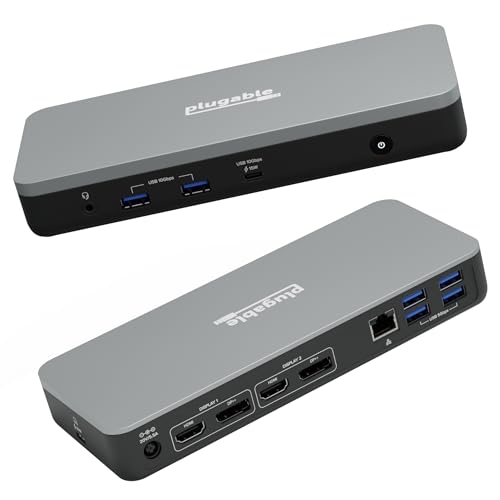
Plugable 12-in-1 Dual 4K USB-C Docking Station (Chromebook Certified)

Our verdict: Chromebook certified, with dual 4K via DisplayLink.

The Plugable 12-in-1 is certified for Chromebook, Windows and ChromeOS, and gives dual 4K display via DisplayLink. It charges at 60W and has Ethernet in a 12-in-1 layout, in the $100 to $200 bucket. DisplayLink compresses video through a driver, which lets a Chromebook with a single video output drive two screens.

It ranks first because the Chromebook certification removes the main uncertainty, and the DisplayLink route works where plain USB-C docks fail. The UD-MSTH2 matches dual 4K at 60Hz but without certification.

Buy it for Chromebook owners who need dual external monitors. The caveats are the 60W charging ceiling and a price above generic hubs. Skip it if one external display is enough.

Compatibility
Chromebook, Windows, ChromeOS certified
Video
Dual 4K via DisplayLink
Charging
60W
Network
Built-in Ethernet

What we like

  • +Chromebook certified
  • +Dual 4K display
  • +Ethernet built in
  • +12-in-1 port layout

Watch out for

  • −Only 60W charging
  • −Higher price than generic hubs

Buy it if: Chromebook owners who need dual external monitors.

Skip it if: One external display is enough.

2

Best Driverless Dual 4K

Plugable USB-C Docking Station Dual Monitor 4K 60Hz (UD-MSTH2)

Our verdict: Dual 4K 60Hz via two HDMI ports, driverless on ChromeOS.

The UD-MSTH2 offers dual 4K 60Hz over two HDMI ports, 65W charging, gigabit Ethernet and USB-C plus three USB-A 5Gbps ports. It is driverless on Windows and ChromeOS, in the $100 to $200 bucket. Driverless means plugging in and working, with no software to install.

It ranks second because it lacks the Chromebook certification, though 65W is five watts more than the 12-in-1. It depends on your Chromebook's port supporting multi-monitor output, which the certified dock bypasses.

Buy it for dual 4K desks that do not need the certification premium. The caveats are the lack of certification and the need for a capable USB-C port. Skip it if you want a certified dock.

Video
Dual 4K 60Hz via 2x HDMI
Charging
65W
Ports
USB-C + 3x USB-A 5Gbps
Setup
Driverless on ChromeOS

What we like

  • +Dual 4K 60Hz
  • +Driverless on ChromeOS
  • +65W charging
  • +Gigabit Ethernet

Watch out for

  • −Not Chromebook certified
  • −Needs a capable USB-C port

Buy it if: Dual 4K desks without certification cost.

Skip it if: You want a certified dock.

3

Best for Thunderbolt Chromebooks

Plugable USB-C Triple Display Docking Station

Our verdict: Three HDMI outputs and 100W charging for newer Chromebooks.

The Plugable Triple Display dock has three HDMI outputs, one at 4K 30Hz and two at 1080p 60Hz. It provides 100W USB-C Power Delivery and six USB 5Gbps ports, and works with Windows, macOS and ChromeOS, in the $100 to $200 bucket. 100W is generous for a Chromebook, leaving headroom for a second device.

It ranks third because three screens only work if the Chromebook supports it, and 4K is limited to 30Hz, which feels laggy for desktop work. It beats the Selore on stated support for ChromeOS.

Buy it if you own a newer Thunderbolt Chromebook and want three screens. The caveats are 4K at 30Hz and a need for a capable host. Skip it if you need 4K at 60Hz.

Video
3x HDMI (1x 4K 30Hz, 2x 1080p 60Hz)
Charging
100W USB-C PD
Ports
6x USB 5Gbps
OS
Windows, macOS, ChromeOS

What we like

  • +Three HDMI outputs
  • +100W Power Delivery
  • +Six USB ports
  • +Works with ChromeOS

Watch out for

  • −4K limited to 30Hz
  • −Needs a capable Chromebook

Buy it if: Newer Thunderbolt Chromebook owners wanting three screens.

Skip it if: You need 4K at 60Hz.

4

Best Budget Hub

Anker Laptop Docking Station Dual Monitor, 8-in-1 USB C Hub

Our verdict: An 8-in-1 hub with 85W PD for under $100.

The Anker 8-in-1 lists dual monitor output through two HDMI ports, 85W Power Delivery, 1 Gbps Ethernet and an SD card reader, in the $50 to $100 bucket. 85W covers any Chromebook charger rating and leaves room for a phone.

It ranks fourth because it makes no Chromebook claims, so its dual-monitor output may drop to one screen on many models. A dock that lists two HDMI ports on a Chromebook that only supports one display will mirror, not extend.

Buy it as a budget hub for ports and one extra screen. The caveats are no Chromebook claim and dual output not guaranteed. Skip it if you need two monitors on ChromeOS.

Format
8-in-1 USB-C hub
Video
Dual monitor via 2x HDMI
Charging
85W PD
Network
1 Gbps Ethernet

What we like

  • +85W Power Delivery
  • +Gigabit Ethernet
  • +SD card reader
  • +Under $100

Watch out for

  • −No Chromebook claim
  • −Dual output not guaranteed

Buy it if: Budget buyers who need ports and one extra screen.

Skip it if: You need two monitors on ChromeOS.

5

Best Triple-Monitor Budget

Selore Laptop Docking Station 3 Monitors, Triple 4K Display

Our verdict: Triple 4K display with 100W PD at a budget price.

The Selore dock is listed for triple 4K display, with three HDMI and two DisplayPort outputs, 100W Power Delivery, 10Gbps USB A and C and gigabit Ethernet. It adds an SD and microSD reader and smart display, in the $50 to $100 bucket. The 10Gbps ports are fast enough for an external SSD.

It ranks fifth because it makes no ChromeOS claim, and triple 4K is only possible on a Chromebook whose graphics and port can drive it. Against the Plugable Triple Display, it lists higher resolution but less certainty.

Buy it for Thunderbolt Chromebooks or mixed-device desks. The caveats are no Chromebook claim and a need for a capable host. Skip it if you want certified ChromeOS support.

Video
Triple 4K (3 HDMI, 2 DP)
Charging
100W PD
Data
10Gbps USB A/C
Network
Gigabit Ethernet

What we like

  • +Triple 4K display
  • +100W Power Delivery
  • +10Gbps USB ports
  • +Under $100

Watch out for

  • −No Chromebook claim
  • −Needs a capable host

Buy it if: Thunderbolt Chromebook or mixed-device desks.

Skip it if: You want certified ChromeOS support.

6

Most Ports for the Price

USB C Laptop Docking Station Dual Monitor HDMI, 14-in-1 USB C Hub

Our verdict: A 14-in-1 hub packed with ports at the lowest price.

This 14-in-1 hub offers dual HDMI plus DisplayPort output, 100W PD pass-through, four USB-A ports, two USB-C ports, SD and TF readers and audio, in the $25 to $50 bucket. It packs the most ports at the lowest price.

It ranks sixth because it states nothing about ChromeOS, so you must know your Chromebook's display limits before relying on it. A port count does not help if the host cannot drive the screens.

Buy it if you know your Chromebook's display limits and want lots of ports for little money. The caveats are no ChromeOS claim and display limits you must check. Skip it if you want certified compatibility.

Format
14-in-1 USB-C hub
Video
Dual HDMI + DisplayPort
Charging
100W PD pass-through
Ports
4x USB-A, 2x USB-C

What we like

  • +Most ports for the price
  • +100W PD pass-through
  • +SD and TF readers
  • +Lowest price here

Watch out for

  • −No ChromeOS claim
  • −Display limits are yours to check

Buy it if: Buyers who know their Chromebook's display limits.

Skip it if: You want certified compatibility.

7

Best for Mixed Households

Anker Prime Docking Station, 14-Port with 160W Max Output

Our verdict: A 160W dock that shares a Chromebook with a power-hungry laptop.

The Anker Prime is a 14-port dock with 160W max output, 10Gbps data transfer, dual 4K displays and a Real-Time Smart Interface display. It sits in the $100 to $200 bucket. 160W is far above what a Chromebook draws, but it suits a shared desk with a workstation laptop.

It ranks last because it is overbuilt for a Chromebook alone, though it suits households sharing a dock with a higher-power machine. It has no ChromeOS claim, so display support is yours to confirm.

Buy it for homes where a Chromebook shares the dock with a power-hungry laptop. The caveats are the excess power and no ChromeOS claim. Skip it if you only own a Chromebook.

Ports
14
Output
160W max
Data
10Gbps
Video
Dual 4K

What we like

  • +160W max output
  • +14 ports
  • +10Gbps data transfer
  • +Dual 4K displays

Watch out for

  • −More power than a Chromebook needs
  • −No ChromeOS claim

Buy it if: Households sharing a dock with a higher-power laptop.

Skip it if: You only own a Chromebook.

Methodology

How We Ranked These

ChromeOS support

Certified and driverless claims ranked above silence.

Display output

Stated resolution, refresh and monitor count were compared.

Charging

Stated PD wattage was matched to typical Chromebook chargers.

Ports

USB, Ethernet and card readers were weighed.

Price tier

Value was judged within each bracket.

Every Primea Score uses the same weights: Performance 30% · Build & Materials 20% · Everyday Usability 20% · Value 20% · Owner Satisfaction 10%. Full scoring rules

Buyer's guide

How to Pick the Right One for You

By Monitor Count

Start with how many screens you need.

MonitorsOur pick
One extra screenAnker 8-in-1 USB-C Hub
Two, certifiedPlugable 12-in-1 Chromebook Certified
Two, driverless 4KPlugable UD-MSTH2
ThreePlugable Triple Display or Selore Triple 4K

By Budget

SpendOur pick
$25-50USB C 14-in-1 Dual HDMI Hub
$50-100Anker 8-in-1 Hub or Selore Triple 4K
$100-200Plugable 12-in-1, UD-MSTH2, Triple Display or Anker Prime

Certified vs Generic

Certified

Claims ChromeOS support directly. The Plugable 12-in-1 fits here.

Generic

Works only if your Chromebook allows it. The Anker 8-in-1, 14-in-1 hub and Selore fit here.

Most Chromebook owners should choose a certified or driverless dock.

By Charging Need

NeedOur pick
Standard ChromebookPlugable UD-MSTH2 (65W)
Higher powerPlugable Triple Display (100W)
Budget 85WAnker 8-in-1 Hub
Dock a second laptopAnker Prime

For Dual-Monitor Desks Specifically

Look for

A DisplayLink or driverless dock stated for ChromeOS.

In this ranking

The Plugable 12-in-1 and UD-MSTH2 both state ChromeOS support.

When to Spend More

Spend more if

You need two monitors on ChromeOS, so the Plugable 12-in-1 is worth it.

Save if

One extra screen is fine, so the Anker 8-in-1 works.

Questions

Frequently Asked Questions

Can a Chromebook run two external monitors?+

Some can through DisplayLink docks like the Plugable 12-in-1. Many only support one over plain USB-C, so check the dock's ChromeOS line and confirm your model's external display support. A dock cannot add outputs that the laptop lacks.

What mistake do buyers make with Chromebook docks?+

They buy a generic hub and expect two screens. Check the ChromeOS line first, because the Anker 8-in-1 and 14-in-1 hubs make no ChromeOS claim, so the second screen may mirror or never light up. Read the compatibility line first.

Is the certified dock worth it over the UD-MSTH2?+

If you want certainty, yes. The UD-MSTH2 offers 65W and dual 4K 60Hz without certification, so it suits buyers who know their Chromebook supports it. The certified dock costs a little more for peace of mind.

Do I need a driver on ChromeOS?+

The UD-MSTH2 is driverless on ChromeOS. The 12-in-1 uses DisplayLink, which is listed as certified, so setup is still simple. Both plug in and work within a minute on a supported Chromebook.

How do I check my Chromebook's display limits?+

Look at the spec sheet for its USB-C display support. Match it to the dock, and search for the maker's list of supported displays. Chromebook makers publish the number of monitors each model can drive.

Can I use a triple display dock on any Chromebook?+

No. The Plugable Triple Display and Selore need a capable, often Thunderbolt, Chromebook. Check yours before ordering a three-screen dock, since the extra output will sit unused on a laptop that drives only one screen.

Final take

Buy the certified Plugable 12-in-1 if you need two external monitors and want certainty. The UD-MSTH2 is a cheaper way to dual 4K without the certification. Choose the Triple Display or Selore only with a capable Thunderbolt Chromebook. The Anker 8-in-1 and 14-in-1 hubs are for buyers who already know their Chromebook's display limits.

More Ranked & Reviewed Guides