
Primea ReviewsAll Reviews

Primea Reviews is reader-supported. When you buy through our Amazon links we may earn a commission, at no extra cost to you. Rankings are set by our editors and never sold. Learn more

Ranked & Reviewed by Primea Reviews

The 7 Best Docking Stations for Two Laptops of 2026, Ranked & Reviewed

By the Primea Editorial TeamUpdated November 1, 202610 min read7 products ranked
The 7 Best Docking Stations for Two Laptops of 2026, Ranked & Reviewed

The short answer

The AV Access 100W KVM dock is the best overall: two laptop inputs, dual monitor switching and 100W PD for each machine. The 13-in-1 KVM adds a 4K120Hz option for a lower tier of detail. The dual HDMI AV Access suits laptops that charge at 60W. Standard docks like the Anker Prime and Dell serve one host at a time.

The Primea Scoreboard

Ranked & Reviewed

  1. Two laptop inputs with 100W charging on each.

    94Outstanding
    Check price
  2. A 13-in-1 aluminum KVM dock with 100W PD and 4K120Hz support.

    91Excellent
    Check price
  3. Two USB-C MST inputs and dual HDMI 4K output.

    88Excellent
    Check price
  4. Shared keyboard, mouse and monitor, with hotkey switching.

    84Very Good
    Check price
  5. A 14-port DisplayLink dock for three 4K60Hz monitors.

    82Very Good
    Check price
  6. Four-display support and 130W PD, at full rate on Dell laptops.

    80Very Good
    Check price
  7. A certified Thunderbolt 4 dock with driverless setup.

    78Very Good
    Check price

Most docks are built on one assumption: a single laptop is plugged in. Put a second machine on the desk and that assumption breaks. Either you swap cables every time you change computers, or you need hardware that can share a monitor, keyboard and mouse between two hosts. A KVM dock does that in one box, while a standard dock plus a separate KVM costs more and adds cable clutter. Mixing the two types up is the expensive mistake here.

We reviewed seven options on paper and ranked them on the Primea framework. Laptop inputs, charging per machine, monitor output, switching method and price tier carried the most weight. The list deliberately mixes true KVM docks with standard docks so you can see where each type earns its place.

Before you buy

What Actually Matters

01

KVM vs standard dock

A KVM dock shares monitors, a keyboard and a mouse across two computers, while a standard dock serves one host at a time. This is the choice that decides everything else. Search the title for KVM and two laptops. Without that wording, assume you will be moving cables, as you would with the Anker, Dell or Plugable.

02

Power delivery per laptop

Power delivery is the wattage sent to each laptop. Many ultrabooks need 65W while workstation machines want 100W or more, and an underpowered dock charges slowly or drains under load. Compare your laptop charger rating against the listing. The AV Access leader lists 100W per laptop, while its dual HDMI sibling offers 60W.

03

EDID emulation

EDID emulation tells your computer that monitors are still connected when the dock switches to the other laptop. Without it, windows can jump or collapse onto one screen after every switch, which becomes maddening on a dual-monitor desk. Look for the term EDID emulation in the bullets. The AV Access models list it and the 13-in-1 does not.

04

Display support

Docks differ in how many monitors they drive and at what refresh rate. A dock may say 4K but only at 30Hz, or list dual 4K60Hz in one place and single 4K120Hz in another. Read the exact figure, such as dual 4K60Hz on the 13-in-1 or triple 4K60Hz on the Anker, then match it to your monitors.

05

Host compatibility

Host compatibility decides whether the dock works at all. Thunderbolt docks suit Thunderbolt laptops, DisplayLink docks like the Anker need a driver, and the Dell reaches full charging only on Dell machines. Check the ports on both laptops and read the listing for any brand limits before you buy.

In-depth reviews

Our Ranked Picks, Reviewed

1

Best Overall

AV Access Docking Station KVM Switch 2 Monitors 2 Laptops (100W PD)

Our verdict: Two laptop inputs with 100W charging on each.

The AV Access 100W is the only dock here that treats both laptops equally. It has two laptop inputs, dual monitor KVM switching and 100W PD to each laptop. It adds 1G Ethernet, 4K monitor support and EDID emulation, so your windows stay put after a switch. Full 100W on both ports is what stops a heavy laptop from draining while docked.

It takes first place over the 13-in-1 KVM because the per-laptop charging is spelled out plainly, and both sit in the $100 to $200 bracket. The dual HDMI AV Access below it drops to 60W per laptop and costs more.

Buy it when both machines draw real power, such as workstation laptops. The honest caveat is network speed: Ethernet is 1G only and no Wi-Fi is listed, so a fast office network will be limited.

Inputs
2 laptops, dual-monitor KVM
Charging
100W PD per laptop
Video
4K monitor support
Network
1G Ethernet

What we like

  • +100W PD per laptop
  • +Two laptop inputs
  • +EDID emulation
  • +KVM switching built in

Watch out for

  • −1G Ethernet only
  • −No Wi-Fi

Buy it if: Two-laptop desks needing full 100W charging on both.

Skip it if: You need more than two displays.

2

Best Budget KVM

KVM Switch 2 Monitors 2 Computers Docking Station (13-in-1, 100W PD)

Our verdict: A 13-in-1 aluminum KVM dock with 100W PD and 4K120Hz support.

The 13-in-1 KVM is an aluminum dock that charges at 100W and takes USB-C, HDMI and DisplayPort inputs. It outputs dual 4K60Hz or a single 4K120Hz signal and is plug and play. The choice of outputs matters: a single high refresh monitor suits gaming or fast motion, while two 60Hz screens suit spreadsheets.

It ranks second because it matches the AV Access on 100W charging but gives up a dual-monitor refresh above 60Hz. It lists no EDID emulation, which the AV Access leader does, so windows can shuffle on a switch. In return, you get that single 4K120Hz option and mixed inputs, and it stays in the $100 to $200 bracket.

Choose it for a budget two-laptop desk that wants one fast monitor. The caveat is that 120Hz applies to a single display only.

Build
13-in-1 aluminum
Charging
100W PD
Video
Dual 4K60Hz or single 4K120Hz
Inputs
USB-C, HDMI, DisplayPort

What we like

  • +100W PD charging
  • +Single 4K120Hz option
  • +USB-C and HDMI inputs
  • +Plug and play

Watch out for

  • −120Hz on one display only
  • −Less detailed listing

Buy it if: Budget two-laptop setups wanting 4K120Hz.

Skip it if: You need dual 120Hz screens.

3

Best Dual HDMI

AV Access KVM Switch Dock 2 Monitors 2 Laptops (2 USB-C MST)

Our verdict: Two USB-C MST inputs and dual HDMI 4K output.

This AV Access model leans on MST over USB-C. It has two USB-C MST inputs, one per laptop, drives dual HDMI 4K monitors and delivers 60W per laptop alongside 1G Ethernet and EDID emulation. MST lets one USB-C connection carry two monitor streams, so each laptop needs only one cable.

It ranks third because 60W per laptop falls short of the 100W provided by the two docks above it. Power hungry machines will charge slowly under load, or not at all. It also sits in the $200 to $500 bracket, more than either of them.

Choose it if both laptops are thin models that charge on 60W or less and you want two HDMI monitors. The caveat is that wattage ceiling. Check each charger rating before buying, and move up to the 100W model if either laptop exceeds 60W.

Inputs
2 USB-C MST ports
Video
Dual HDMI 4K
Charging
60W PD per laptop
Detection
EDID emulation

What we like

  • +Two USB-C MST inputs
  • +Dual HDMI 4K output
  • +EDID emulation
  • +KVM switching built in

Watch out for

  • −Only 60W per laptop
  • −Higher price tier

Buy it if: Laptops that charge at 60W or less.

Skip it if: Your laptops need 100W.

4

Best for Laptop plus Desktop

AV Access 8K KVM Switch 2 Monitors 2 Computers for Laptop & Desktop

Our verdict: Shared keyboard, mouse and monitor, with hotkey switching.

The AV Access 8K is a pure KVM switch rather than a charging dock. It shares one keyboard, mouse and monitor between two computers, supports an 8K-capable signal and uses hotkey switching, with gigabit Ethernet. Because it handles a laptop and a desktop alike, it is the only pick that suits a mixed desk.

It ranks fourth because the listing gives no per-laptop charging, which the docks above include. You will still need a charger for each machine. It is also in the $200 to $500 bracket, so you pay more for switching alone. The 8K claim matters little unless you own a display that uses it.

Choose it for a laptop beside a desktop that share peripherals. The caveat is simple: power delivery is not listed, so plan separate chargers.

Computers
2, laptop and desktop
Video
8K-capable signal
Switching
Hotkey-based
Network
Gigabit Ethernet

What we like

  • +Hotkey switching
  • +Shared keyboard and mouse
  • +8K-capable signal
  • +Laptop and desktop support

Watch out for

  • −No charging listed
  • −Higher price tier

Buy it if: Mixed laptop and desktop setups.

Skip it if: You need per-laptop charging.

5

Best Triple-Monitor Dock

Anker Prime Docking Station (DL7400), 14-Port Triple Display with DisplayLink

Our verdict: A 14-port DisplayLink dock for three 4K60Hz monitors.

The Anker Prime DL7400 is a different animal. It is a 14-port dock with 140W max power, a built-in cooling fan, smart display switching and triple 4K60Hz output through DisplayLink. Three monitors from one cable is something none of the KVM docks here can match.

It ranks fifth because it serves one laptop at a time and cannot switch hosts, which is the whole point of this guide. DisplayLink also relies on a driver, so image quality depends on software rather than the laptop's own graphics. The Plugable below it is cheaper but offers fewer displays.

Choose it when one of your two laptops needs three monitors and the second can use another cable. The caveat is the driver dependence and the $200 to $500 price, which is steep for a dock that cannot switch.

Ports
14
Power
140W max
Video
Triple 4K60Hz DisplayLink
Cooling
Built-in fan

What we like

  • +Triple 4K60Hz display
  • +140W max power
  • +Built-in cooling fan
  • +Smart display switching

Watch out for

  • −Not a KVM switch
  • −DisplayLink dependence

Buy it if: One laptop needing triple monitors.

Skip it if: You want one-box laptop switching.

6

Best for Dell Laptops

Dell Pro Thunderbolt 4 Smart Dock SD25TB4

Our verdict: Four-display support and 130W PD, at full rate on Dell laptops.

The Dell SD25TB4 is a business dock with serious port count. It supports four 4K displays, delivers 130W PD at the full rate on Dell laptops, and adds two Thunderbolt 4 ports, 2.5GbE Ethernet, Wi-Fi, two DisplayPort 1.4 and HDMI 2.1. The 2.5GbE port gives it a faster wired connection than the AV Access models.

It ranks sixth because it is not a KVM switch, and the full charging rate applies to Dell laptops only. On other brands it may charge at a lower wattage. At $200 to $500 it also costs more than the leader, which switches between laptops.

Choose it when a Dell laptop is the main machine and a second device only occasionally plugs in. The caveat is that Dell specific charging, so check the listing if your second laptop is another brand.

Displays
4 supported at 4K
Charging
130W PD (full on Dell)
Ports
2x Thunderbolt 4, 2x DP 1.4, HDMI 2.1
Network
2.5GbE, Wi-Fi

What we like

  • +Four displays supported
  • +2.5GbE Ethernet
  • +Wi-Fi built in
  • +Two Thunderbolt 4 ports

Watch out for

  • −Full charge only on Dell
  • −Not a KVM

Buy it if: Dell laptop users in a business setup.

Skip it if: You use non-Dell laptops.

7

Best for Mac and Windows Pair

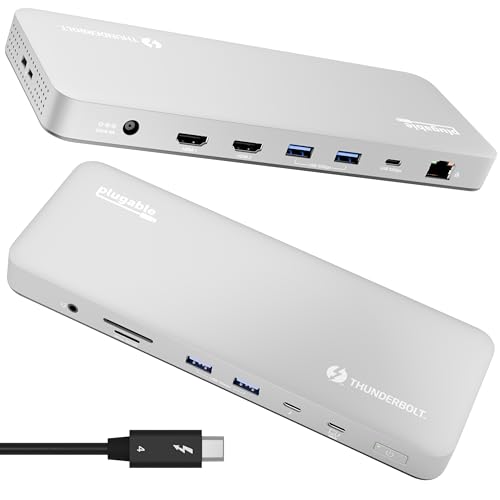
Plugable Thunderbolt 4 Dock for M4/M5 MacBook Air & Pro

Our verdict: A certified Thunderbolt 4 dock with driverless setup.

The Plugable is a Thunderbolt 4 certified dock aimed at M4 and M5 MacBooks. It charges at 100W, drives dual 4K HDMI or a single 6K display, offers six USB ports, an SD reader and Ethernet, and installs without drivers. Certification matters because it guarantees the full Thunderbolt feature set rather than a loose USB-C approximation.

It ranks last because it serves one host at a time and has no KVM switching, so a second laptop means unplugging. Against the Anker, it has fewer displays but costs less, in the $100 to $200 bracket.

Buy it when the Mac is the machine you dock daily and the second laptop only visits. The caveat is that missing switch: for two laptops sharing a monitor and keyboard, the AV Access models above are the better answer.

Certification
Thunderbolt 4
Charging
100W
Video
Dual 4K HDMI or single 6K
Setup
Driverless

What we like

  • +Thunderbolt 4 certified
  • +100W charging
  • +Driverless setup
  • +Six USB ports

Watch out for

  • −Not a KVM switch
  • −Serves one host

Buy it if: A pair where the Mac needs certified Thunderbolt 4.

Skip it if: You want one-box switching.

Methodology

How We Ranked These

Laptop inputs

KVM docks with two inputs ranked above single-host docks.

Charging per laptop

Stated PD wattage per laptop was compared.

Monitor output

Display count and resolution were weighed.

Switching method

Built-in KVM and hotkey switching were compared with manual cable swaps.

Price tier

Value was judged within each bracket.

Every Primea Score uses the same weights: Performance 30% · Build & Materials 20% · Everyday Usability 20% · Value 20% · Owner Satisfaction 10%. Full scoring rules

Buyer's guide

How to Pick the Right One for You

By Charging Need

Match the dock's wattage to your laptops.

ChargerOur pick
Both laptops need 100WAV Access KVM Dock (100W PD)
Laptops under 60WAV Access KVM Dock (2 USB-C MST)
Dell laptop at 130WDell SD25TB4
MacBook at 100WPlugable Thunderbolt 4 Dock

By Budget

SpendOur pick
$100-200AV Access KVM Dock (100W PD), 13-in-1 KVM Dock or Plugable Dock
$200-500AV Access 2 USB-C MST, AV Access 8K, Anker DL7400 or Dell SD25TB4

KVM Dock vs Standard Dock

KVM dock

One box switches two laptops. The AV Access docks and 13-in-1 KVM fit here.

Standard dock

Serves one laptop at a time. The Anker DL7400, Dell SD25TB4 and Plugable dock fit here.

Most buyers with two laptops should choose a KVM dock.

By Monitor Setup

SetupOur pick
Dual 4KAV Access KVM Dock (100W PD)
Single 4K120Hz13-in-1 KVM Dock
Triple monitorAnker Prime DL7400
Four displaysDell SD25TB4

For Mixed Mac and Windows Pairs Specifically

Look for

A certified Thunderbolt 4 dock for the Mac and a switch for the other.

In this ranking

The Plugable Thunderbolt 4 dock covers the Mac side.

When to Spend More

Spend more if

You need four displays or Wi-Fi, so the Dell SD25TB4 fits.

Save if

You just want switching and 100W, so the AV Access 100W dock does it.

Questions

Frequently Asked Questions

Can one dock charge two laptops?+

The KVM docks here list per-laptop charging, such as 100W PD on each input of the AV Access model. Standard docks like the Plugable charge only the laptop connected. Check the wattage each machine needs.

What mistake do buyers make?+

Buying a standard dock and expecting it to switch laptops. Only a KVM dock, like the AV Access or the 13-in-1, does that. The Anker and Dell are excellent docks, but each serves one host at a time.

Is the AV Access worth it over the 13-in-1?+

If you want per-laptop 100W spelled out and EDID emulation, yes. The 13-in-1 gains a single 4K120Hz option and mixed inputs, so choose it if one fast monitor matters more than window stability.

How do I switch between laptops?+

Press the switch button or a keyboard hotkey, depending on the model. The AV Access 8K lists hotkey switching for its two computers. Check the listing so you know whether the model offers a button, hotkey or both.

How do I avoid windows rearranging?+

Pick a dock with EDID emulation, like the AV Access models, which keeps monitors recognised during a switch. Without it, windows can collapse onto one screen, so the 13-in-1 may need a manual rearrange.

Does the Dell dock charge non-Dell laptops?+

The listing says the 130W rate is the full speed on Dell laptops. Other brands may charge at a lower rate, so the Dell SD25TB4 suits a Dell-led desk better than a mixed pair.

Final take

Buy the AV Access 100W KVM dock if two laptops need full charging and one-box switching. Take the 13-in-1 if a single 4K120Hz screen matters more. Pick a standard dock only when one laptop needs the heavy display load, since the Anker, Dell and Plugable cannot switch between hosts. Check your chargers' wattage first, because it decides which dock fits.

More Ranked & Reviewed Guides